# Normal reinstallation

{% hint style="warning" %}
&#x20;<mark style="background-color:green;">Reinstalling Windows with a USB is</mark> <mark style="background-color:green;"></mark><mark style="background-color:green;">**HIGHLY**</mark> <mark style="background-color:green;"></mark><mark style="background-color:green;">recommended. This is to ensure the disk bans are gone.</mark>&#x20;

🌟 **Easiness**: <mark style="color:green;">**8/10 VERY EASY**</mark>**&#x20;| Takes max 15 Minutes.** 🕒

<mark style="color:yellow;">**Am I disk banned? This is how to know**</mark>**:** If multiple spoofers have failed and you've been banned several times on the same PC, it could be a disk ban. In such cases, we recommend reinstalling Windows using a USB, following the instructions provided below.
{% endhint %}

<details>

<summary>🔹 <mark style="color:red;"><strong>I DONT HAVE AN USB/HELP ME!</strong></mark><strong> |</strong> <strong>IT LOOKS TOO HARD FOR ME!</strong> </summary>

Trust the process. It may seem overwhelming at first with all the images and details, but it’s easier than it appears! We encourage you to give it a shot. If you need help, feel free to reach out to us on Discord. 💚

<mark style="color:red;">Don’t have a USB for the reinstall?</mark> Most cost around $2-5 just get the 8GB one, and it’s highly recommended to get one.

**Alternatively, you can reinstall Windows by going to Settings** > Reset this PC > Remove everything > Cloud download > <mark style="color:blue;">**Change settings**</mark> > Clean data <mark style="color:green;">**\[YES**</mark>] / Delete files from all drives <mark style="color:green;">**\[YES]**</mark> / Download Windows <mark style="color:green;">**\[YES]**</mark> > Confirm & Next, then wait. This process may take 1 to 3 hours.

</details>

### <mark style="color:blue;">REINSTALL WINDOWS WITH A USB</mark> ( RECOMMENDED )

{% embed url="<https://www.microsoft.com/en-us/software-download/windows10>" fullWidth="false" %}

{% hint style="warning" %}
**NOTE:** When reinstalling Windows, most modern systems will automatically detect and install basic Ethernet drivers, so your connection should work fine after installation. ✅

<mark style="background-color:red;">**In some cases, you may need to manually download and install network drivers.**</mark>

To be safe, download the network drivers (LAN) for your motherboard model. For example, search "Gigabyte A520M KV2 1.1 Network drivers" on Google, and save them to your USB drive. This step is optional, but there's a small chance you may lose connection after the Windows reinstallation. 🌐
{% endhint %}

1. Download Media Creation Tool above, click **"Download Now"**

2. Open the **Media Creation Tool as an administrator**

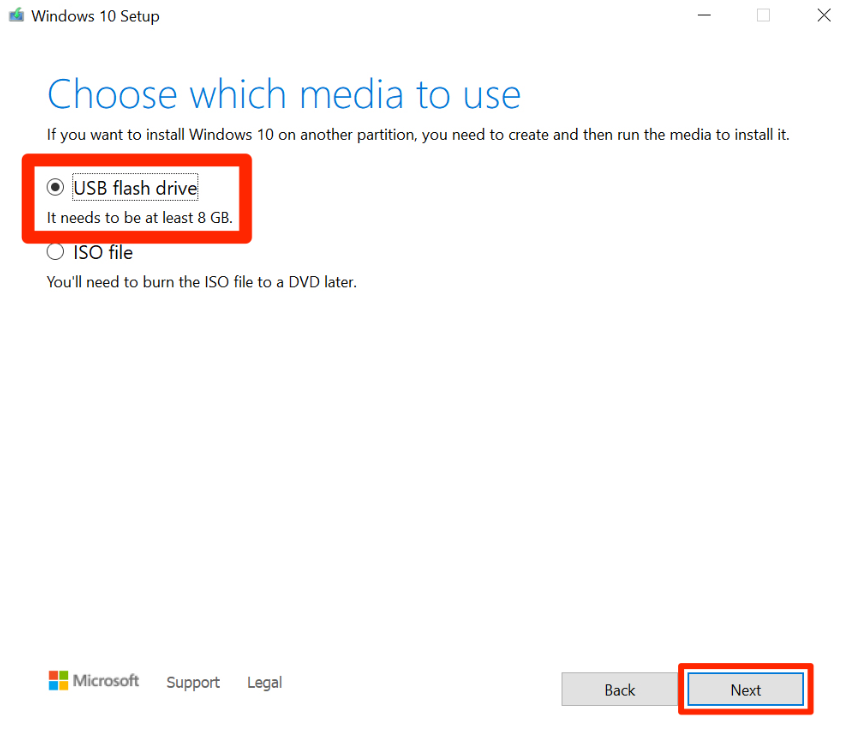
3. Select **Create Installation media (USB Flash drive)**

   <figure><img src="https://4197391581-files.gitbook.io/~/files/v0/b/gitbook-x-prod.appspot.com/o/spaces%2FV1IMYFWRBxcCsiNygx1k%2Fuploads%2F6c5UMacayQHsiQSGIXAx%2Fimage.png?alt=media&#x26;token=dce06996-1058-4fa3-a6a5-34b6a92205e4" alt=""><figcaption></figcaption></figure>

4. Use all the recommended options & continue & wait for it to finish.

5. ### <mark style="color:$primary;background-color:$primary;">YOUR USB SHOULD LOOK LIKE THIS</mark>

   <figure><img src="https://4197391581-files.gitbook.io/~/files/v0/b/gitbook-x-prod.appspot.com/o/spaces%2FV1IMYFWRBxcCsiNygx1k%2Fuploads%2FXZtVClYcT61h4ZYjj9EN%2Fimage.png?alt=media&#x26;token=39ed6953-a323-437d-843a-da0ac5c27fac" alt=""><figcaption></figcaption></figure>

6. Hold SHIFT, and click Restart and keep holding SHIFT!

   <figure><img src="https://4197391581-files.gitbook.io/~/files/v0/b/gitbook-x-prod.appspot.com/o/spaces%2FV1IMYFWRBxcCsiNygx1k%2Fuploads%2Fv8u0Mwbdhz2brDA2nwVl%2Fimage.png?alt=media&#x26;token=633697d1-37b6-43c5-a0b7-ccb1f6711393" alt=""><figcaption></figcaption></figure>

7. Select **Use a device** and select the USB *(Known as "Flash Drive")*

   <figure><img src="https://4197391581-files.gitbook.io/~/files/v0/b/gitbook-x-prod.appspot.com/o/spaces%2FV1IMYFWRBxcCsiNygx1k%2Fuploads%2F7o2MEyAkkKKsA3OKyPJ1%2Fimage.png?alt=media&#x26;token=36a20c9f-e31e-4474-8bf3-c8de688dce54" alt=""><figcaption></figcaption></figure>

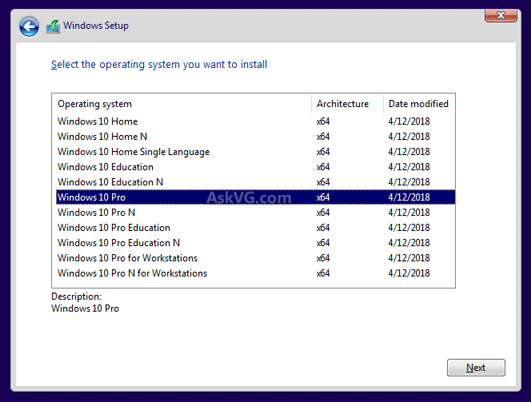
8. Select **Windows 10 Pro** **(IMPORTANT!)**

<figure><img src="https://4197391581-files.gitbook.io/~/files/v0/b/gitbook-x-prod.appspot.com/o/spaces%2FV1IMYFWRBxcCsiNygx1k%2Fuploads%2FiLDl2KpzSojz21qCWJDK%2Fimage.png?alt=media&#x26;token=a6e64bc0-06f5-4abf-baaa-a45f8f9b13d2" alt=""><figcaption></figcaption></figure>

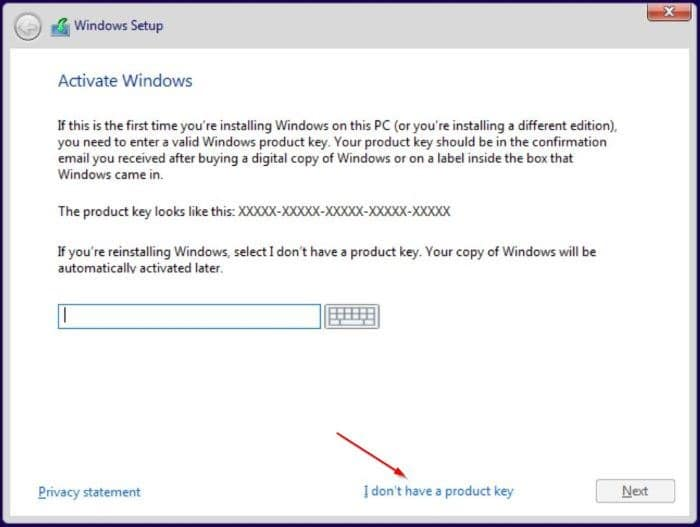
9. Select **"I don't have a product key"** (No worries about this)

<figure><img src="https://4197391581-files.gitbook.io/~/files/v0/b/gitbook-x-prod.appspot.com/o/spaces%2FV1IMYFWRBxcCsiNygx1k%2Fuploads%2Fcu25ey0gfZZHcxkeGyWt%2Fimage.png?alt=media&#x26;token=e9d7e99f-ffc5-47c0-a737-9c2e92472365" alt=""><figcaption></figcaption></figure>

10. **Select Custom:** Install Windows Only (advanced)

<figure><img src="https://4197391581-files.gitbook.io/~/files/v0/b/gitbook-x-prod.appspot.com/o/spaces%2FV1IMYFWRBxcCsiNygx1k%2Fuploads%2FgNjcD5sRnpOFiao0Y92U%2Fimage.png?alt=media&#x26;token=de3507b1-05c3-41fe-b28a-a0acb74ad9ea" alt=""><figcaption></figcaption></figure>

11. Press **SHIFT + F10** (A CMD will pop up)
12. Now write `diskpart` into the CMD
13. Then write `list disk` into the CMD to see all ur drives
14. Write `select disk 'X'` (X = Disk number) then write `clean` for ALL disks, besides ur USB.

***

{% hint style="danger" %}
**For example,** if you have only one disk, type **'select disk 1**' and then **'clean'.** If you have two drives, type 'select disk 2', then 'clean', and repeat for other drives as needed. ✅

Flash drives (USB) are usually smaller in size than internal hard drives or SSDs, and they are likely listed last. <mark style="background-color:red;">**DO NOT clean your flash drive (USB)!**</mark>

<mark style="background-color:green;">**Still unsure? Contact us, and we’ll help you through it together. 🤝**</mark>
{% endhint %}

<figure><img src="https://4197391581-files.gitbook.io/~/files/v0/b/gitbook-x-prod.appspot.com/o/spaces%2FV1IMYFWRBxcCsiNygx1k%2Fuploads%2FxgaBcIo2p0XFu1Aw0YCR%2Fimage.png?alt=media&#x26;token=c7f8eee7-81c3-4a5f-a5eb-f236c164214e" alt=""><figcaption><p>Now it should output: <mark style="color:$success;background-color:$success;">'Succeeded in cleaning the disk'</mark> or something related to <mark style="color:$success;background-color:$success;"><strong>'success'</strong></mark></p></figcaption></figure>

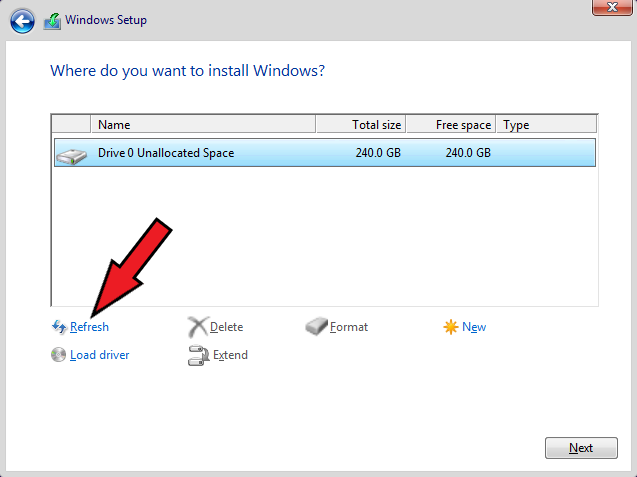
16. Close the CMD and click **Refresh**

<figure><img src="https://4197391581-files.gitbook.io/~/files/v0/b/gitbook-x-prod.appspot.com/o/spaces%2FV1IMYFWRBxcCsiNygx1k%2Fuploads%2FDnPBM8ze58H2FbzNSjXE%2Fimage.png?alt=media&#x26;token=23fc618b-2738-4d72-bb1b-dff81a661cf9" alt=""><figcaption></figcaption></figure>

16. Select your **main drive** (Unallocated Space) and click **Next**
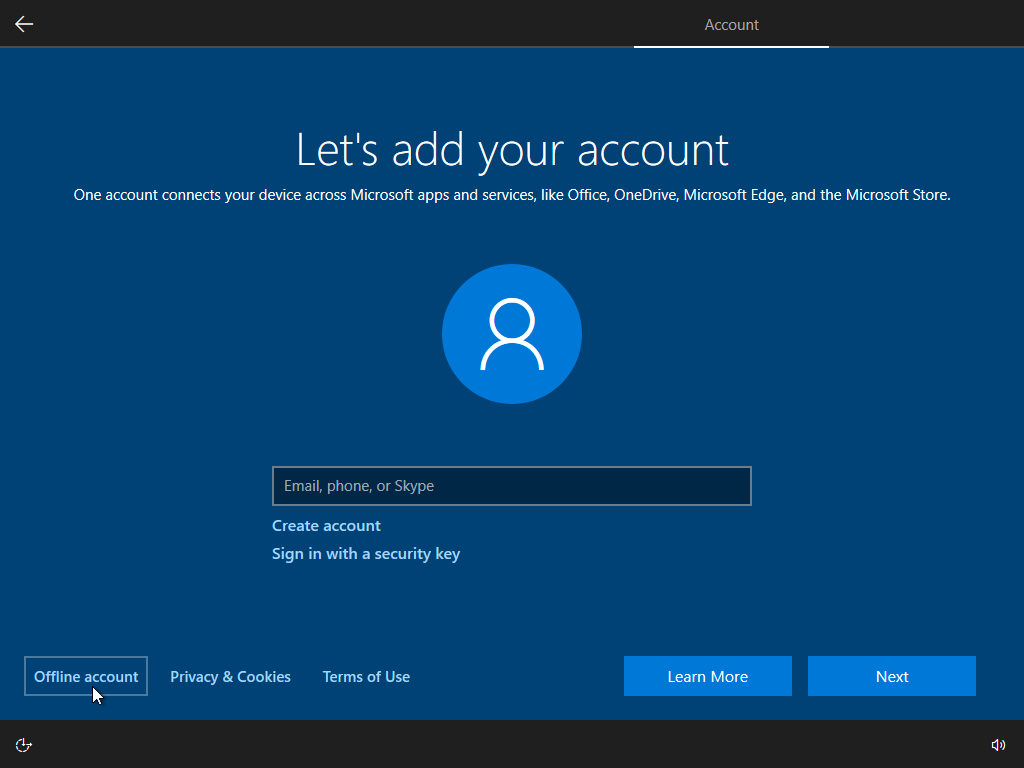
17. The installation process should start, <mark style="color:$danger;background-color:$danger;">AND MAKE AN OFFLINE ACCOUNT!</mark>

<figure><img src="https://4197391581-files.gitbook.io/~/files/v0/b/gitbook-x-prod.appspot.com/o/spaces%2FV1IMYFWRBxcCsiNygx1k%2Fuploads%2F1ii9hyRHOvNr698btETE%2Fimage.png?alt=media&#x26;token=c7b33b9f-b3f3-4bf9-959e-a2565925190a" alt=""><figcaption></figcaption></figure>

16. Turn **OFF** All privacy questions/settings

    <figure><img src="https://4197391581-files.gitbook.io/~/files/v0/b/gitbook-x-prod.appspot.com/o/spaces%2FV1IMYFWRBxcCsiNygx1k%2Fuploads%2Fxb8jLktgxeHRufl91TBr%2Fimage.png?alt=media&#x26;token=469900ce-8d1c-42d0-a31a-b9a48cf5079d" alt=""><figcaption></figcaption></figure>

{% hint style="danger" %}

#### **Make sure to follow these steps while and after reinstallation:**&#x20;

1\. Make an offline account or a new Microsoft account. Don't login to ur old one.&#x20;

2\. Do not login to <mark style="color:blue;">OneDrive</mark>, <mark style="color:$success;">Geforce Experience,</mark> & <mark style="color:$warning;">Medal</mark> using same account.

3\. Install: [https://aka.ms/vs/17/release/vc\_redist.x64.exe ](https://aka.ms/vs/17/release/vc_redist.x64.exe)to prevent any errors.
{% endhint %}